How to Add a Timestamp in Google Sheets
How to Add a Timestamp in Google Sheets Timestamps are essential in spreadsheets. They record when data was entered, when a task was completed, or when...
Read the guide ›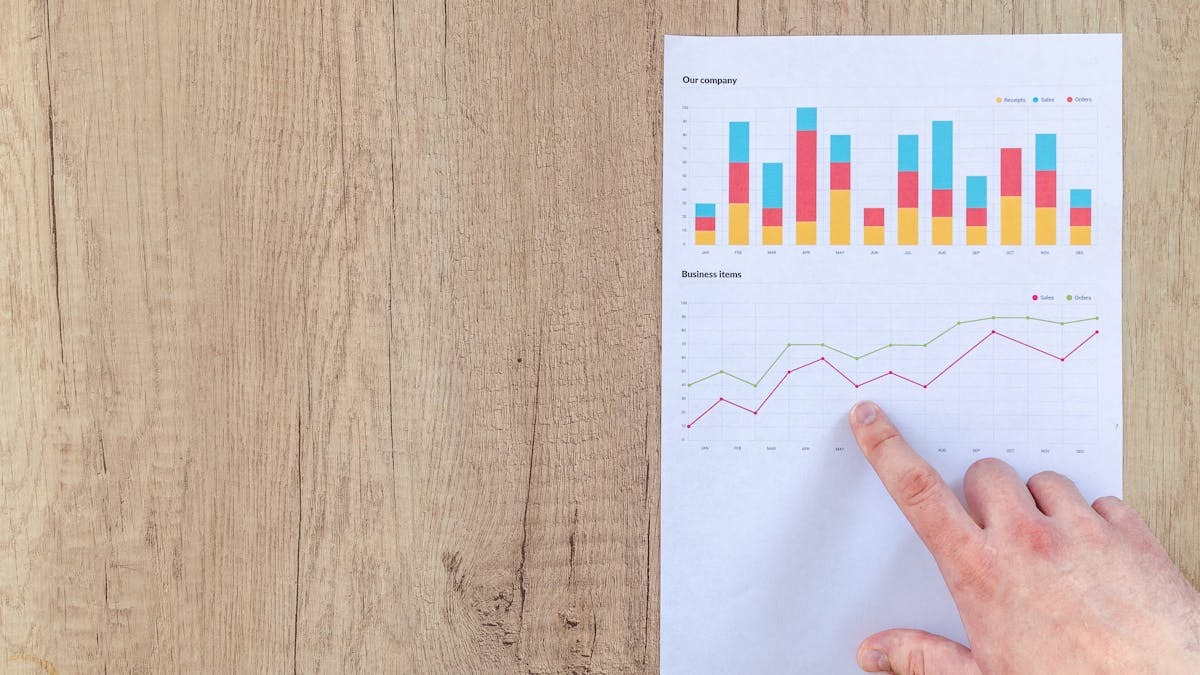
Raw numbers in a spreadsheet tell a story, but the story gets lost in rows and columns. A chart transforms those numbers into a visual narrative that your brain can grasp instantly. When you're presenting sales trends, budget breakdowns, or survey results, a well-chosen graph communicates your data more effectively than any table ever could.
Google Sheets excels at turning spreadsheet data into charts because the process is intuitive and the results are professional. Whether you're creating a simple bar chart to compare values or a complex scatter plot to show relationships, Google Sheets provides the tools to visualize your data in moments. The charts are interactive, customizable, and can be embedded in presentations or shared documents.
Choosing the right chart type is crucial. A pie chart works beautifully for showing parts of a whole, but it becomes confusing when comparing more than five categories. A line chart tells a time-series story clearly, while a bar chart excels at comparing values across categories. Understanding which visualization matches your data helps you communicate your insights effectively.
Before you insert a chart, you need to decide what data to visualize. Select the range that includes both your headers and your data. If you're charting monthly sales figures, you'd select the month labels in the first column along with the sales numbers in the second column. The selection doesn't have to be contiguous; you can select multiple columns or ranges if needed, though Google Sheets handles single rectangles most smoothly.
Including headers is important. Your header row should contain labels like "Month," "Revenue," or "Department." Google Sheets automatically recognizes headers and uses them to label your chart axes and legend. If you don't have headers, Google Sheets defaults to generic labels like "Column A" and "Column B," which makes your chart less useful.
Make sure your data is consistent in type. Don't mix text and numbers in the same column unless that column is meant to be a category label. For example, a column should contain either all month names or all sales figures, not both mixed together. This ensures Google Sheets interprets your data correctly and creates an accurate chart.
With your data selected, go to Insert > Chart in the top menu. Google Sheets immediately opens the Chart Editor panel on the right side of your screen. This panel has several tabs: Setup, Chart type, Customize, and Advanced options. The Chart Editor is where all the magic happens for customizing your visualization.
On the Setup tab, you can adjust your data range if needed. The preview on the left shows what your chart looks like as you make changes. By default, Google Sheets picks a chart type it thinks fits your data, often a column chart. You might see "Column chart" selected with a preview of your data displayed as vertical bars.
The Chart Editor defaults to showing your data as a column chart, which is a good starting point for many datasets. However, you'll almost always want to visit the Chart type tab to see what other options might work better. The real power of Google Sheets charting comes from experimenting with different chart types to find the one that tells your story most clearly.
Google Sheets offers numerous chart types, each with a specific purpose. Understanding the strengths and limitations of each helps you pick the right one for your data story.
A column chart uses vertical bars to compare values across categories. This is one of the most versatile chart types and works well for almost any categorical comparison. If you're comparing sales by region, quarterly revenue, or test scores by student, a column chart makes the differences obvious at a glance. The taller the bar, the larger the value. Viewers are comfortable reading column charts because they're ubiquitous in business presentations and reports.
A bar chart is identical to a column chart except the bars are horizontal. Use bar charts when your category labels are long, because horizontal orientation gives more space for text. If your regions are named "North America," "South America," "Europe," and "Asia Pacific," a bar chart lets you read those labels without squinting, whereas a column chart might crowd them together along the x-axis.
A line chart connects data points with lines, making it ideal for showing trends over time. If you're tracking website traffic month by month, stock prices over years, or temperature changes throughout the day, a line chart shows the trajectory clearly. The rise and fall of the line tells the time-series story better than disconnected bars would. Line charts can include multiple lines to compare several trends simultaneously, like showing revenue and profit on the same graph.
A pie chart displays data as slices of a circle, with each slice representing a portion of the whole. Pie charts work best for data that adds up to 100 percent, like market share, budget allocation, or survey response percentages. However, pie charts have serious limitations: they're difficult to read with more than five slices, and comparing slices of similar size is harder than comparing bars. Many data visualization experts recommend bar charts over pie charts for most uses. If you need to show parts of a whole, consider whether a bar chart might communicate better.
A scatter chart uses dots positioned on two axes to show relationships between two variables. If you're exploring whether there's a correlation between study hours and test scores, or between advertising spending and revenue, a scatter chart reveals patterns. Dots clustered in a diagonal line suggest a strong correlation; scattered randomly suggests no relationship. Scatter charts are particularly useful in scientific and analytical contexts.
An area chart is similar to a line chart but with the space below the line filled with color. Area charts emphasize magnitude and trend simultaneously. If you're showing how three revenue streams combine to make total revenue over time, stacking areas makes it easy to see both the individual contribution of each stream and the total growth trend. The visual impact of colored areas often communicates more effectively than lines alone.
A combo chart combines two different chart types on the same graph. You might use bars to show actual sales and a line to show the forecast or target. This lets you compare different types of data with different scales on the same visualization. Combo charts are advanced but powerful when you need to show relationships between unlike datasets.
After selecting your chart type, click on the Customize tab in the Chart Editor to adjust the appearance. This is where you add titles, change colors, adjust legend position, and fine-tune fonts. Every element of your chart can be customized to match your style or presentation theme.
The chart title is typically the first thing viewers read. A good title tells the story of your data. Instead of generic titles like "Sales Data," use descriptive titles like "Q1 2026 Revenue by Region" or "Monthly Website Traffic Growth." Your title should be specific enough that someone viewing the chart without additional context understands what they're looking at.
Axis titles matter equally. If your x-axis represents months and your y-axis represents revenue in dollars, label them clearly. Without axis labels, viewers have to guess what the numbers represent. In the Customize tab, you'll find sections for Horizontal axis title and Vertical axis title where you can type descriptive labels.
Colors and visual styling come next. Google Sheets defaults to a color palette that works reasonably well, but you can customize each series' color. In the Customize tab, find the Series section and click on a series name to change its color. You might make your most important data point a bold color and secondary data points lighter colors to direct attention.
The legend explains what each bar, line, or slice represents. By default, Google Sheets includes a legend on the right side of your chart. If your chart has only one data series, you might remove the legend to save space. If it has multiple series, the legend becomes essential. You can adjust legend position in the Customize tab, moving it to the top, bottom, left, or right.
Font options let you adjust the size and style of text in your chart. Larger fonts are more readable when you're presenting, while smaller fonts work when you're embedding the chart in a document. You can change title font separately from axis label fonts, letting you emphasize the title visually.
Let's walk through creating a bar chart with a practical example. Imagine you have sales data for five products with their quarterly revenue. Your spreadsheet has product names in column A (Product A through E) and sales figures in columns B through E (Q1 through Q4).
First, select the entire data range including headers. Click on cell A1 and drag to E5, selecting all your data. You could also click on A1 and shift-click on E5 to select the range. Once selected, go to Insert > Chart. Google Sheets opens the Chart Editor with a preview of your data as a column chart.
Since you want bars instead of columns, click on the Chart type tab and look for the Bar chart option. Click it, and your chart transforms into horizontal bars. The products are now on the left (y-axis) and sales values run along the bottom (x-axis). This horizontal layout makes product names easy to read.
Click on the Customize tab. Add a title like "Quarterly Sales by Product." Google Sheets lets you type directly into the title field. Adjust the colors if you want: click on a series (like Q1) to change its color independently. You might use slightly different shades of blue for each quarter, creating a subtle visual progression.
Make sure your y-axis (products) and x-axis (sales values) have labels. Add "Product" as the vertical axis title and "Revenue (USD)" as the horizontal axis title. These labels clarify what viewers are looking at. Once you're satisfied with the appearance, click Insert to place the chart in your sheet.
Line charts excel at showing how something changes over time. Let's say you have monthly website traffic data. Column A contains months (January through December) and column B contains visitor counts for each month.
Select the month labels and visitor numbers (A1:B12), then insert a chart. Google Sheets defaults to a column chart, so click the Chart type tab and select Line chart. Your data transforms into a line connecting points for each month. The x-axis shows months and the y-axis shows visitor counts.
In the Customize tab, add a title like "Website Traffic: January-December 2026." The line itself is the focus here, so a clean, uncluttered design works best. You might increase the line width to make the trend more prominent, or adjust the color to match your brand.
Google Sheets offers options like "Smooth line" and "Show data points." Smooth lines create a flowing curve, which is aesthetically pleasing but sometimes masks the actual data points. Showing data points as small circles makes the actual measured values visible. For most business applications, straight lines connecting points are clearer because they show the actual data without interpolation.
If you have multiple series (like website traffic for two different regions), both lines appear on the same chart. You can customize each line's color and style separately, making it easy to compare trends side-by-side. The legend shows which line represents which data series.
Pie charts are visually appealing and great for showing how a total is divided into parts. If you're showing a budget breakdown where 40 percent goes to salaries, 30 percent to operations, 20 percent to marketing, and 10 percent to supplies, a pie chart makes that split instantly obvious.
To create a pie chart, select your category labels and the values that represent parts of a whole. Include headers, then Insert > Chart. In Chart type, select Pie chart. Google Sheets displays your data as slices of a circle, with the largest slice appearing first and slices sized proportionally to their values.
Customize the pie by adding a descriptive title and adjusting colors. You can click on individual slices to separate them from the pie slightly (called "exploding" a slice), which draws attention to that category. This is useful if you want to highlight the largest slice or a particularly important category.
The major limitation of pie charts is that they become unreadable with more than five or six slices. Beyond that point, small slices are hard to distinguish and the chart becomes cluttered. If your data has many categories, a bar chart is often clearer because it's easier to compare bar heights than to judge slice sizes. Consider using a bar chart instead if you have more than five or six categories to display.
When you insert a chart, it appears in your sheet at a default size. You probably want to move it and resize it to fit your layout. Click on the chart to select it, then you can drag it to a new location. The chart snaps to a grid in Google Sheets, making alignment easy.
To resize, hover your cursor over the bottom-right corner of the chart until it changes to a resize cursor (diagonal arrows), then drag to make the chart larger or smaller. You can also resize from any edge to stretch the chart in one dimension while keeping the other constant.
You have the option to place the chart on the same sheet as your data or on its own sheet. When creating a chart, after customizing it in the Chart Editor, click the three-dot menu and select "Move to own sheet" if you want the chart to have its own dedicated space. This is useful for large charts you want to focus viewers' attention on.
Creating a chart in Google Sheets is just the beginning. The real power comes when you embed that chart in a Google Slides presentation. Charts in Slides can be linked to the original Sheets data, so if your spreadsheet updates, your presentation updates automatically.
With your chart created and selected in Google Sheets, copy it (Ctrl+C or Cmd+C). Open your Google Slides presentation and navigate to the slide where you want the chart. Paste it there. Google Sheets gives you options: paste as a linked chart (which updates when the source data changes) or paste as an image (which stays static). For most business uses, linked charts are preferable because they always reflect your latest data.
A linked chart maintains a connection to the original Google Sheet. If you update the data in the sheet, the chart in Slides updates automatically without any additional work. This is particularly useful for dashboards and reports that need to stay current as new data comes in.
For advanced users, Google Sheets offers a powerful technique: building charts around dynamic data ranges using QUERY or FILTER functions. Instead of manually selecting a static range, these functions can filter your data based on conditions, and your chart updates automatically as the conditions change.
A QUERY function lets you write SQL-like queries to extract and transform data. You might write a QUERY that shows only sales above a certain threshold, or only data from a specific month. The formula returns only the matching rows, and any chart based on that data shows only what the QUERY returns.
FILTER is simpler: it hides rows that don't meet your criteria. You could create a FILTER formula that shows only entries from a certain region, and a chart based on that filtered data displays only that region's information. When you change the filter criteria, the chart updates automatically.
These dynamic approaches are more complex than basic charting, but they're powerful for dashboards and reports that need to update based on changing conditions. They're also useful when you want to let viewers interact with the data by changing filter criteria without modifying the original dataset.
The most frequent charting error is selecting the wrong data range. If your chart looks wrong or shows unexpected values, double-check your selection. Make sure you're including headers and all the data you intend to visualize, and nothing extra. You can always adjust the range in the Chart Editor's Setup tab.
Another common issue is missing headers or unclear headers. If your headers are generic or missing, Google Sheets labels your series "Column A," "Column B," which confuses viewers. Always use descriptive headers that clearly indicate what each column contains. Take a moment to review your headers before charting.
Choosing the wrong chart type for your data is surprisingly common. A pie chart makes sense for parts-of-a-whole data but confuses when showing comparisons or time series. A line chart tells a time story beautifully but isn't ideal for comparing unrelated categories. Think about what story your data tells and pick the chart type that tells it most clearly.
Many people create charts but forget to customize titles and axis labels, leaving viewers confused. Take the extra thirty seconds to add a meaningful title and label your axes. These small additions make your charts vastly more useful and professional.
Overusing colors is another mistake. Your chart doesn't need every color of the rainbow. Stick to a simple color palette with good contrast. Use color to highlight important data points, not to decorate. A single color for all bars in a simple chart works fine and looks cleaner than multiple colors.
Run a free scan in Swiss Knife SEO, the platform we built and use on every client engagement. No account needed for the first audit.
How to Add a Timestamp in Google Sheets Timestamps are essential in spreadsheets. They record when data was entered, when a task was completed, or when...
Read the guide ›How to Use ARRAYFORMULA in Google Sheets One of the most frustrating tasks in Google Sheets is dragging a formula down hundreds of rows. You copy...
Read the guide ›Understanding Data Transposition Transposing data means flipping your spreadsheet so rows become columns and columns become rows. If you have customer names in a vertical list...
Read the guide ›